 yobuilds
Bedrock Edition · Windows PC · Illustrated guide
Place with a structure block
Follow the numbered steps in the screenshots. Select the build file directly from your computer; you do not need to copy it into the game folder first.
Download this build
Save the .mcstructure file to Downloads. You will select it in the game later.
Get a structure block
Enter your world with cheats enabled, then paste this command into chat. Skip this step if you already have a structure block.
/give @s structure_blockFrom command to placement
-
01
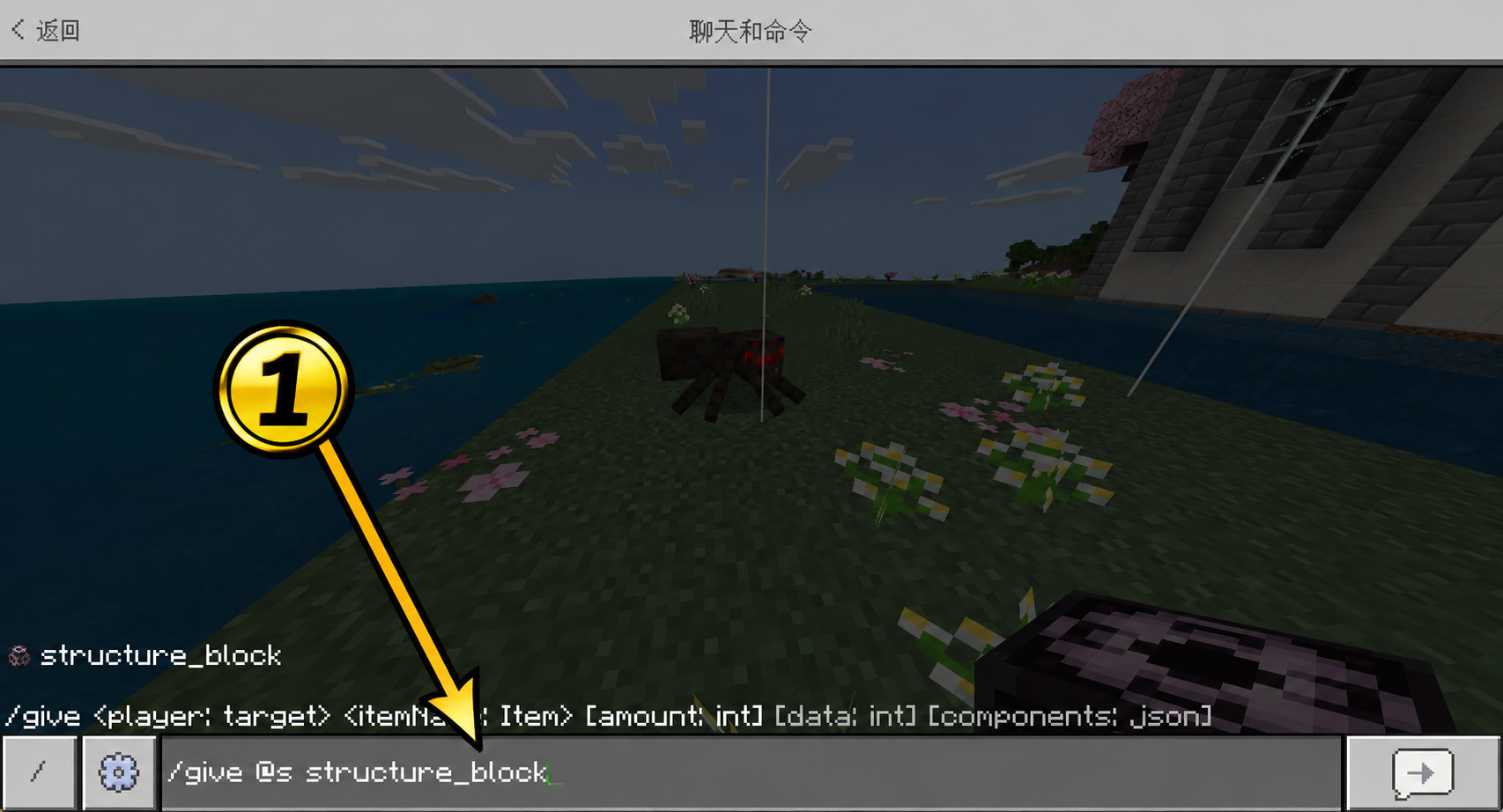
Get a structure block through chat
Paste the command above into chat and send it. Place the structure block you receive near your intended building site.
-
02—03
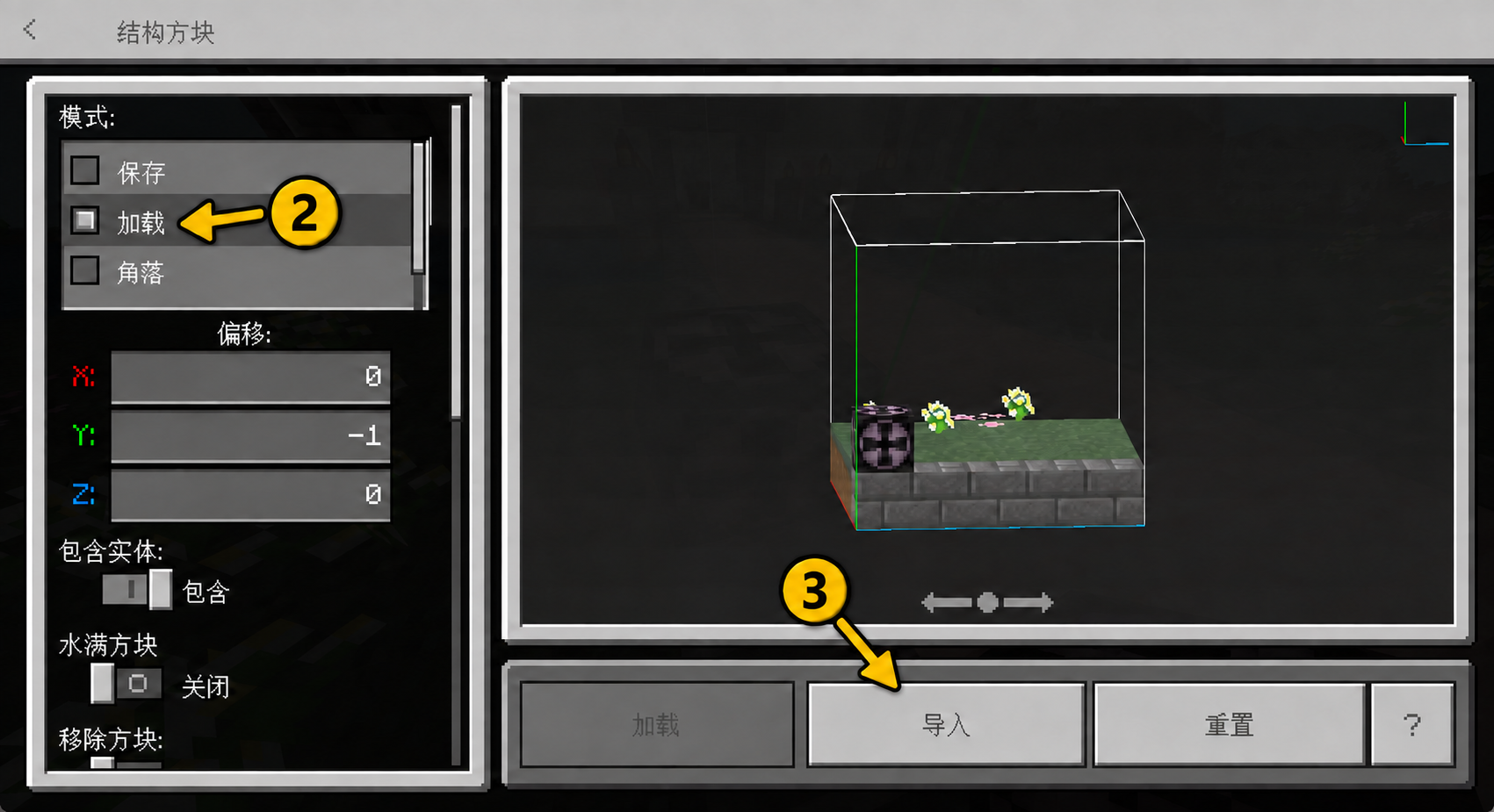
Choose “Load”, then “Import”
Open the structure block you placed. Choose “Load” on the left, then “Import” below.
-
04—05
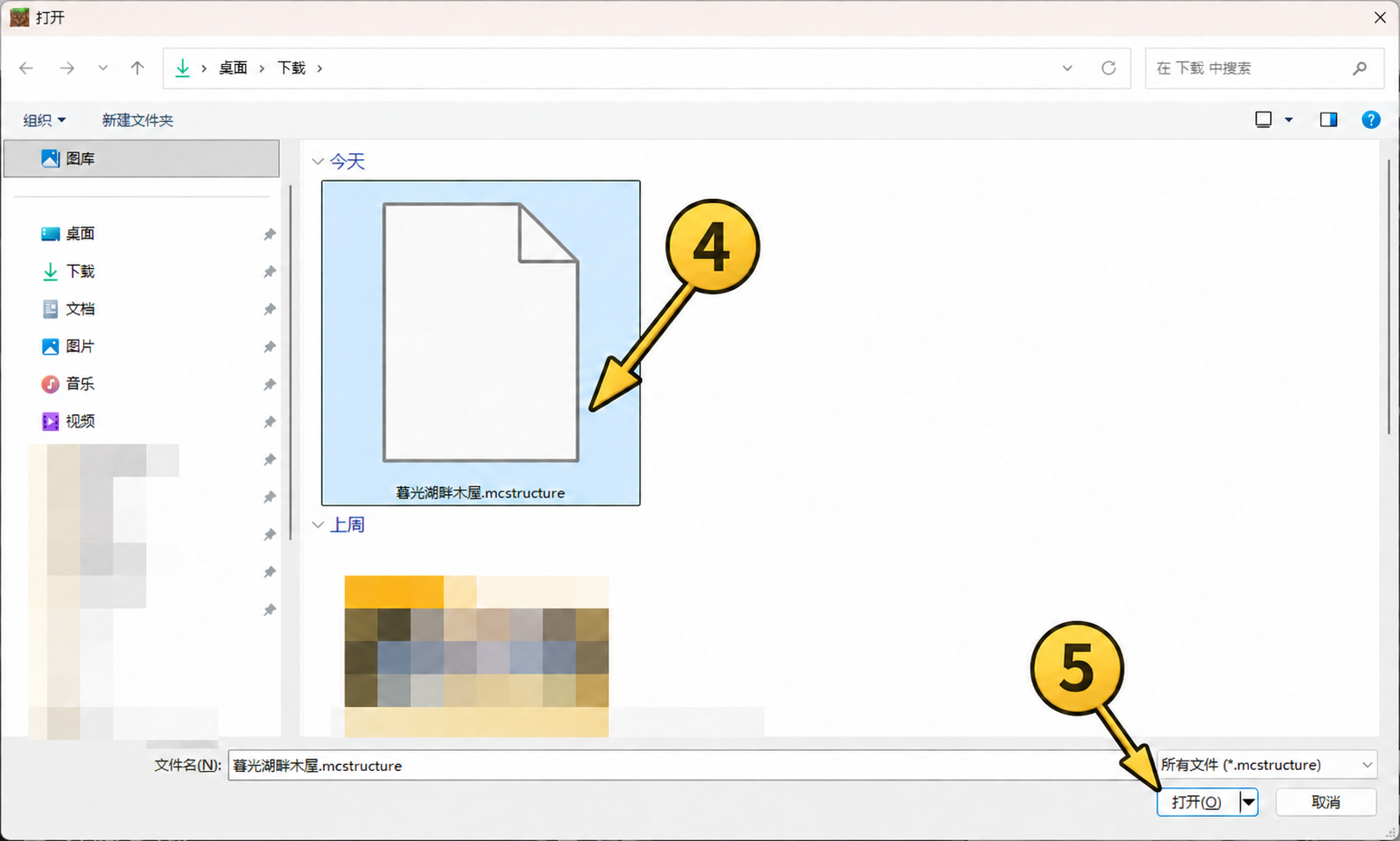
Select the downloaded file
Find your downloaded .mcstructure file in the file picker, select it and choose “Open”. The screenshot filename is only an example; select your own build.
-
06
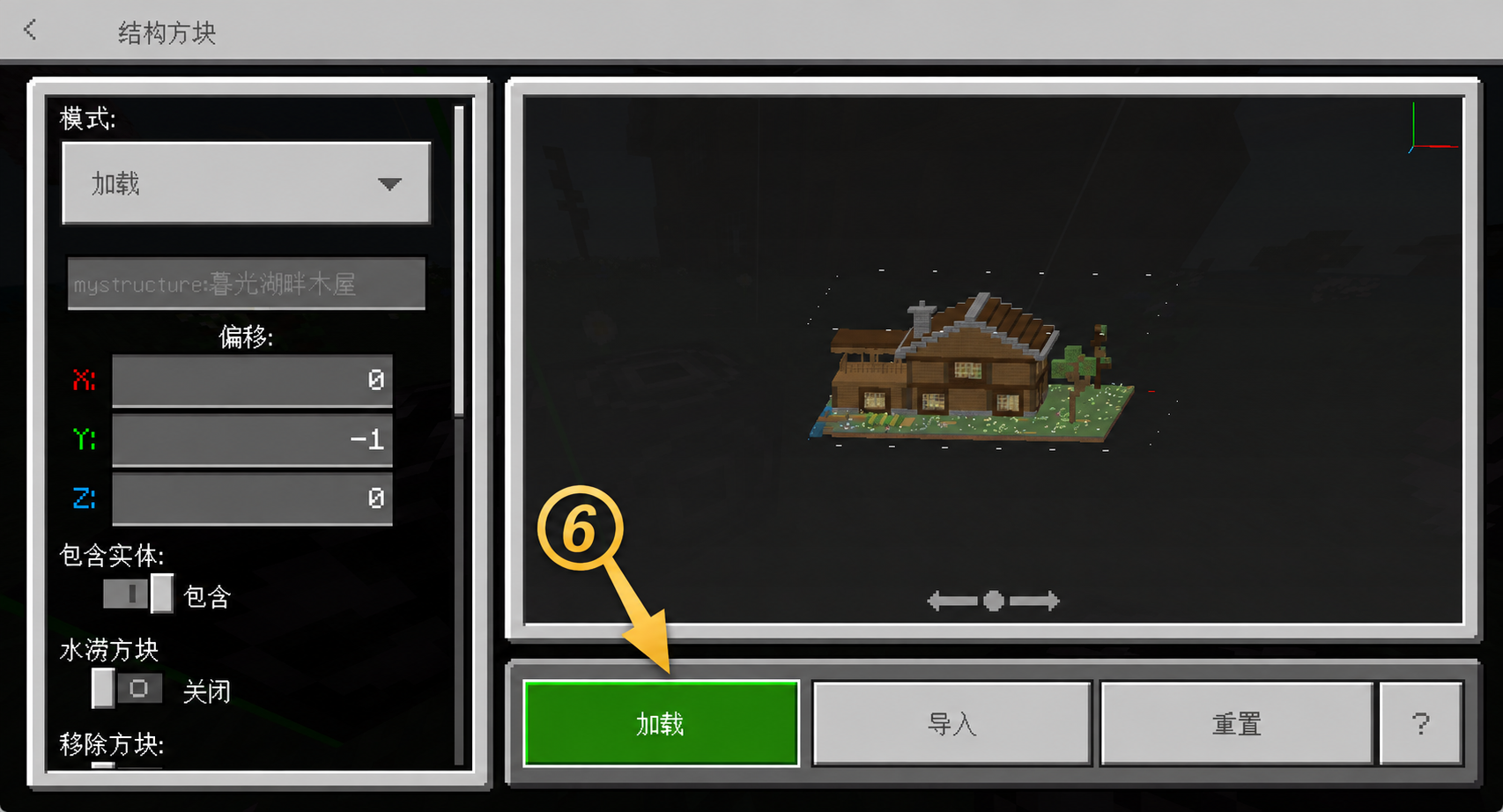
Adjust the position, then select the green “Load” button
After import, a preview appears. The offset values on the left are relative to the structure block. Changing a value by 1 moves the build by one block on that axis.
XMove east or west
+ East - WestYMove up or down
+ Up - DownZMove north or south
+ South - NorthAdjust X and Z a little at a time to move the build into clear space. Adjust Y if it is too high or underground. Check the preview after each change. Select the green “Load” button only when the position is right.
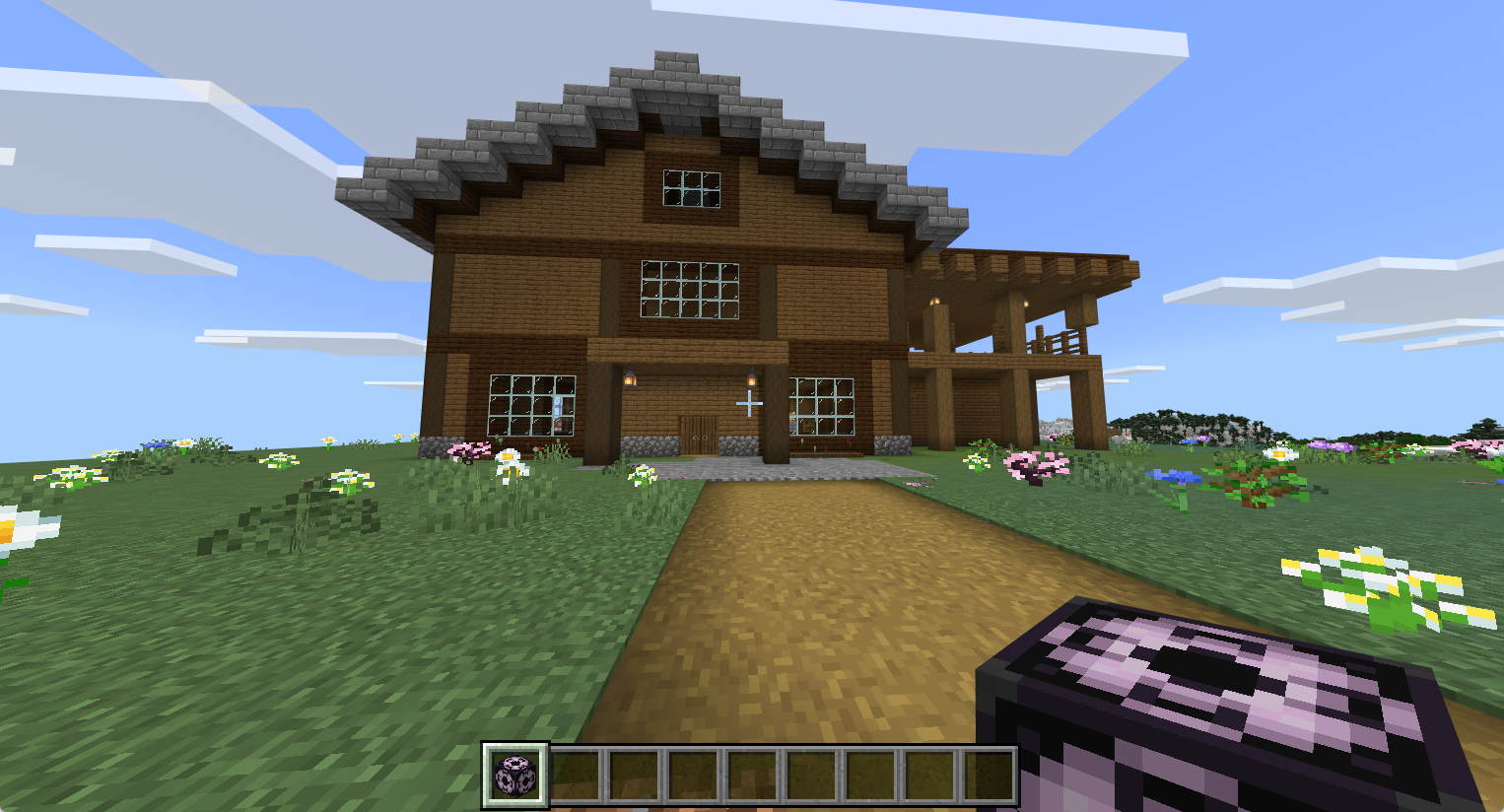
Your build is in the world
Select “Load”, then return to the game to see your placed build. The screenshot shows the example build; your own downloaded build will appear in your world.
Common situations
The command does not work?
Use a Bedrock world with cheats and commands enabled. Structure blocks are also available in the Creative inventory.
The build is missing from the file picker?
Check that the download ends in .mcstructure. It is usually in Downloads. If your browser saved it elsewhere, open that folder instead.
The preview outline is in the wrong position?
Place the structure block near the intended site, then adjust X, Y and Z as shown in step ⑥. Offsets follow world directions, regardless of where your player faces. Check that loading will not cover existing buildings.