 yobuilds
Bedrock Edition · Windows PC · Illustrated guide
Place with a behavior pack
Import the build pack, activate it for the world you want to use, then enter this build’s specific command.
Download this build’s behavior pack
Save the .mcpack file to your computer, then open it with Minecraft for Windows.
Activate the behavior pack before entering
Each build has its own command. After installing the add-on below, copy the command shown here. The screenshot command is only an example.
请从作品页打开教程Install, activate and place
-
01—02
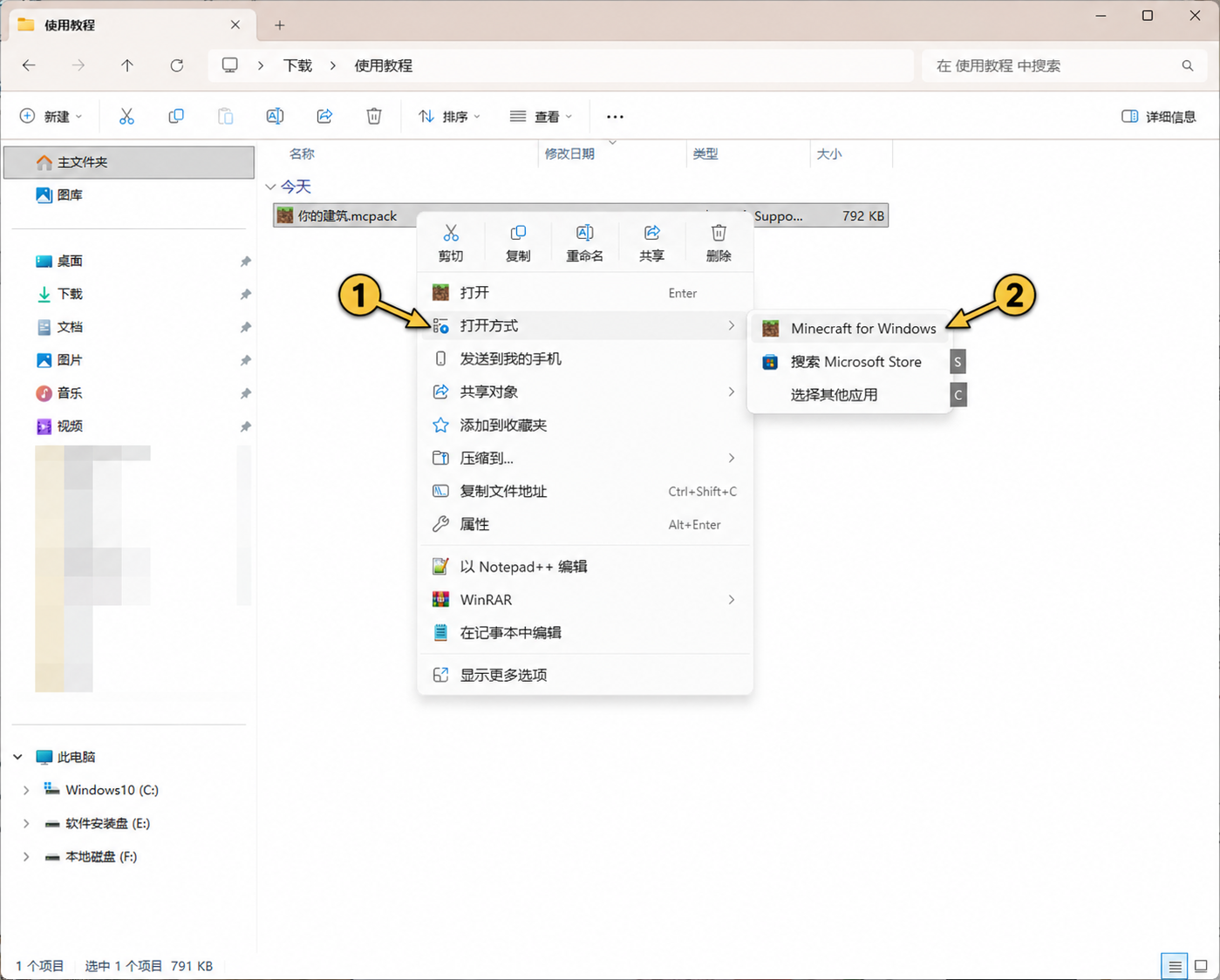
Open the download with Minecraft
Right-click the downloaded .mcpack file and choose Open with → Minecraft for Windows. Wait for the import confirmation, then return to the world list.
-
03
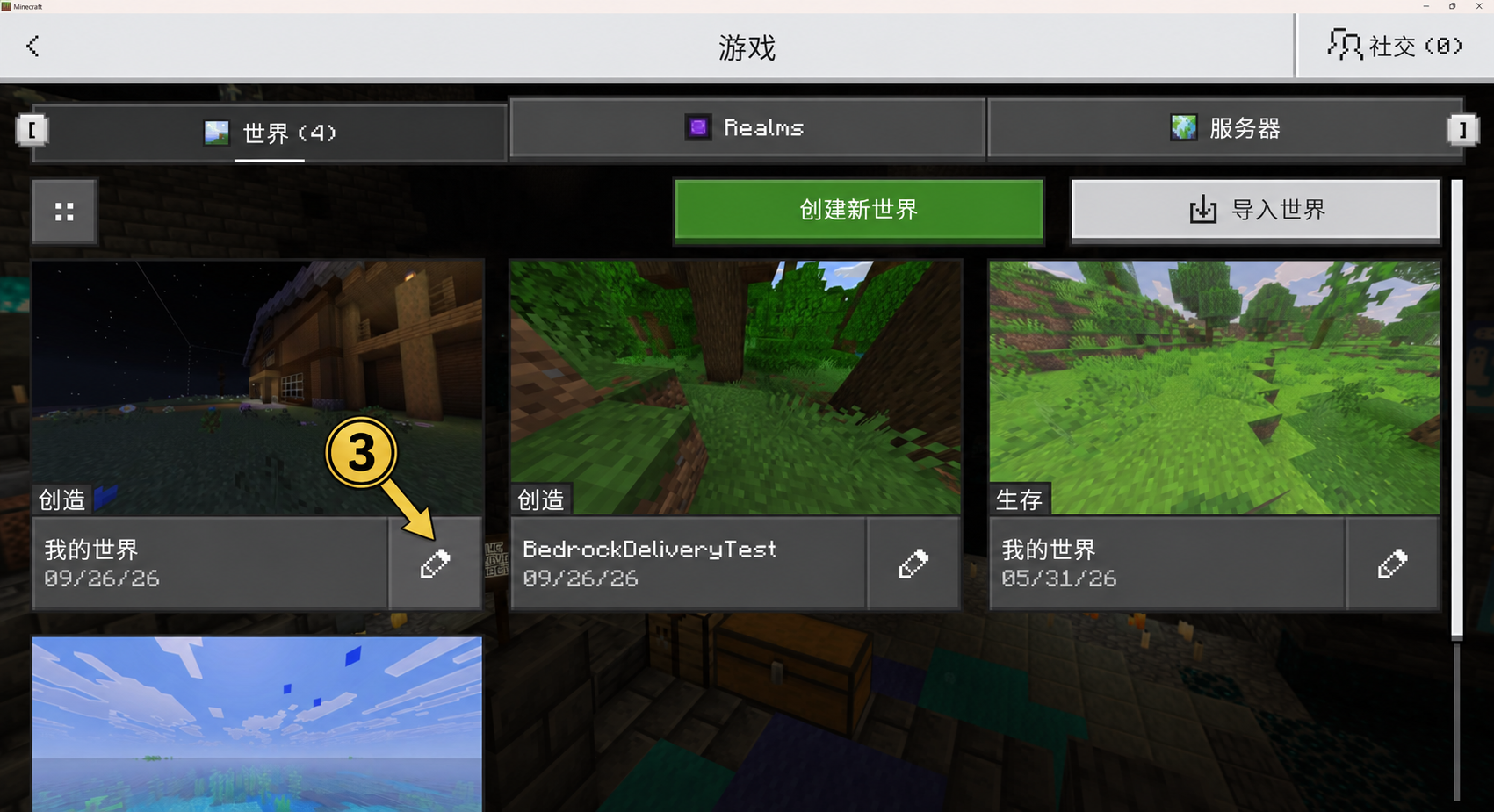
Edit the world where you want to place the build
Find the world in the Worlds list and select its pencil edit button at the bottom right. Open its settings first rather than entering the world.
-
04—06
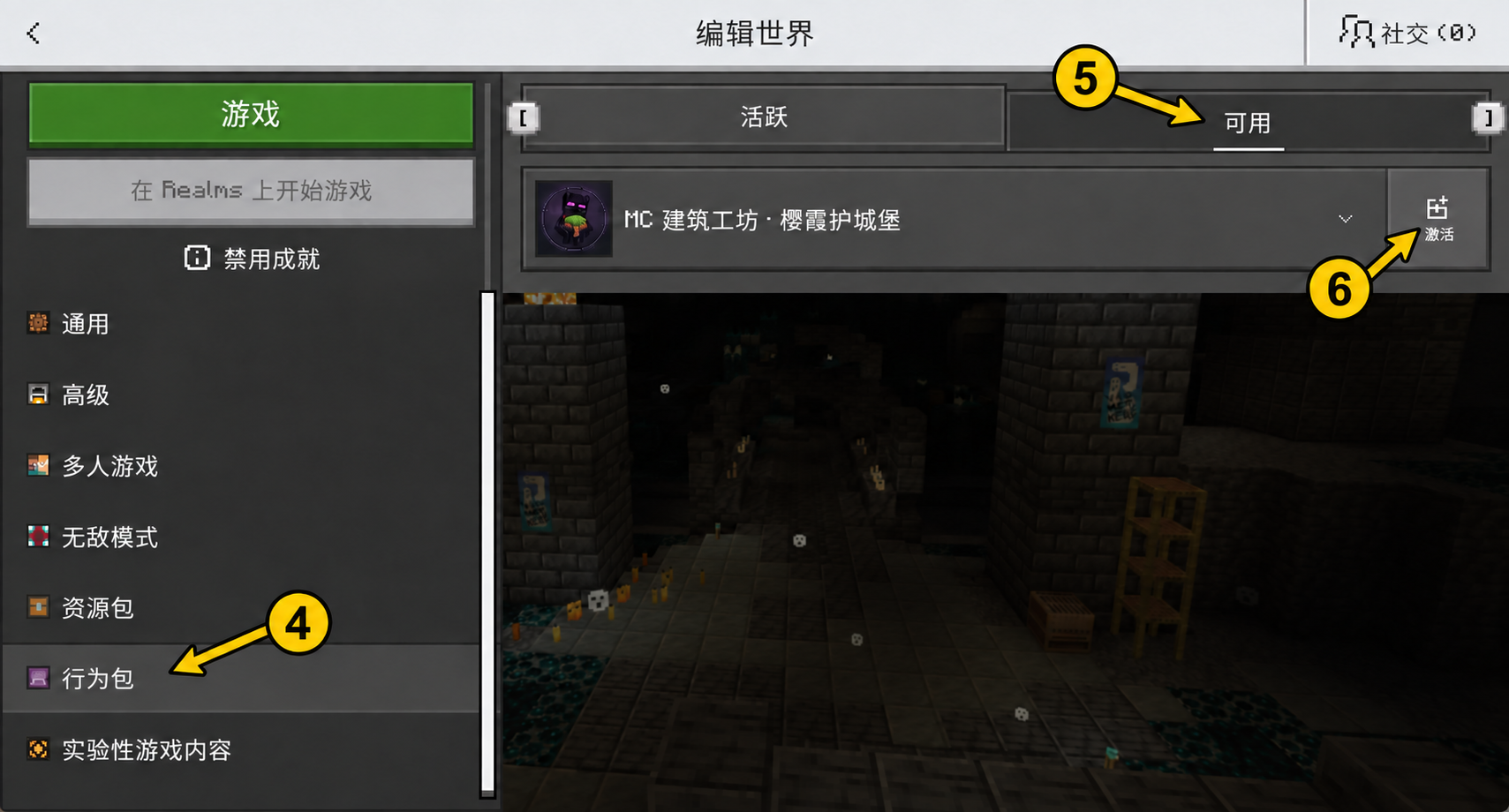
Choose Behavior Packs on the left, then activate the pack
Scroll down the left menu and choose “Behavior Packs”, then choose “Available”, find your imported pack and select “Activate”. Select your own downloaded pack; the name in the screenshot is an example.
-
07
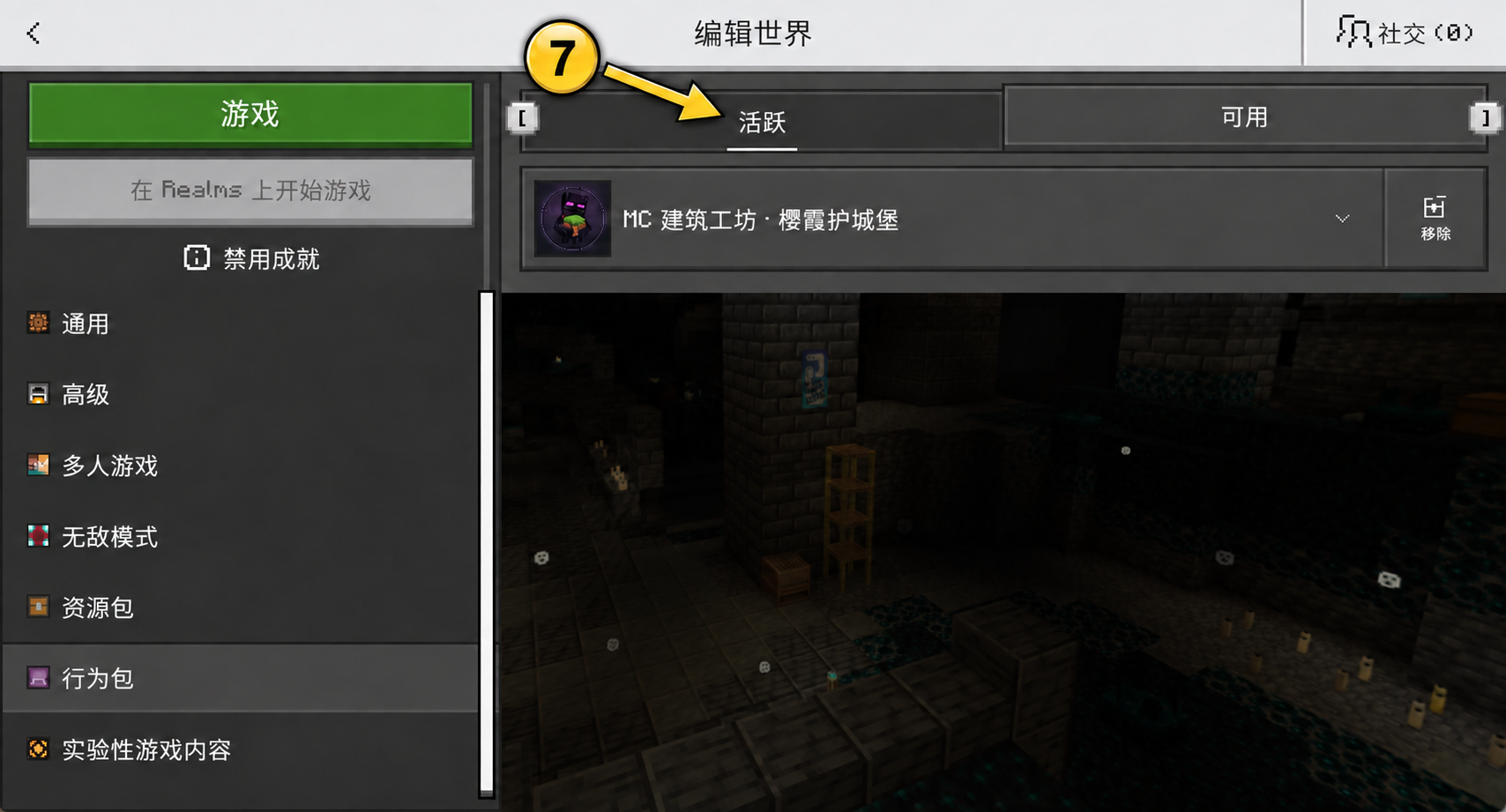
Check that the pack appears under “Active”
Open the “Active” tab on the right. Seeing the build pack here means it is enabled forthis world. Return to the world list and enter this world.
-
08
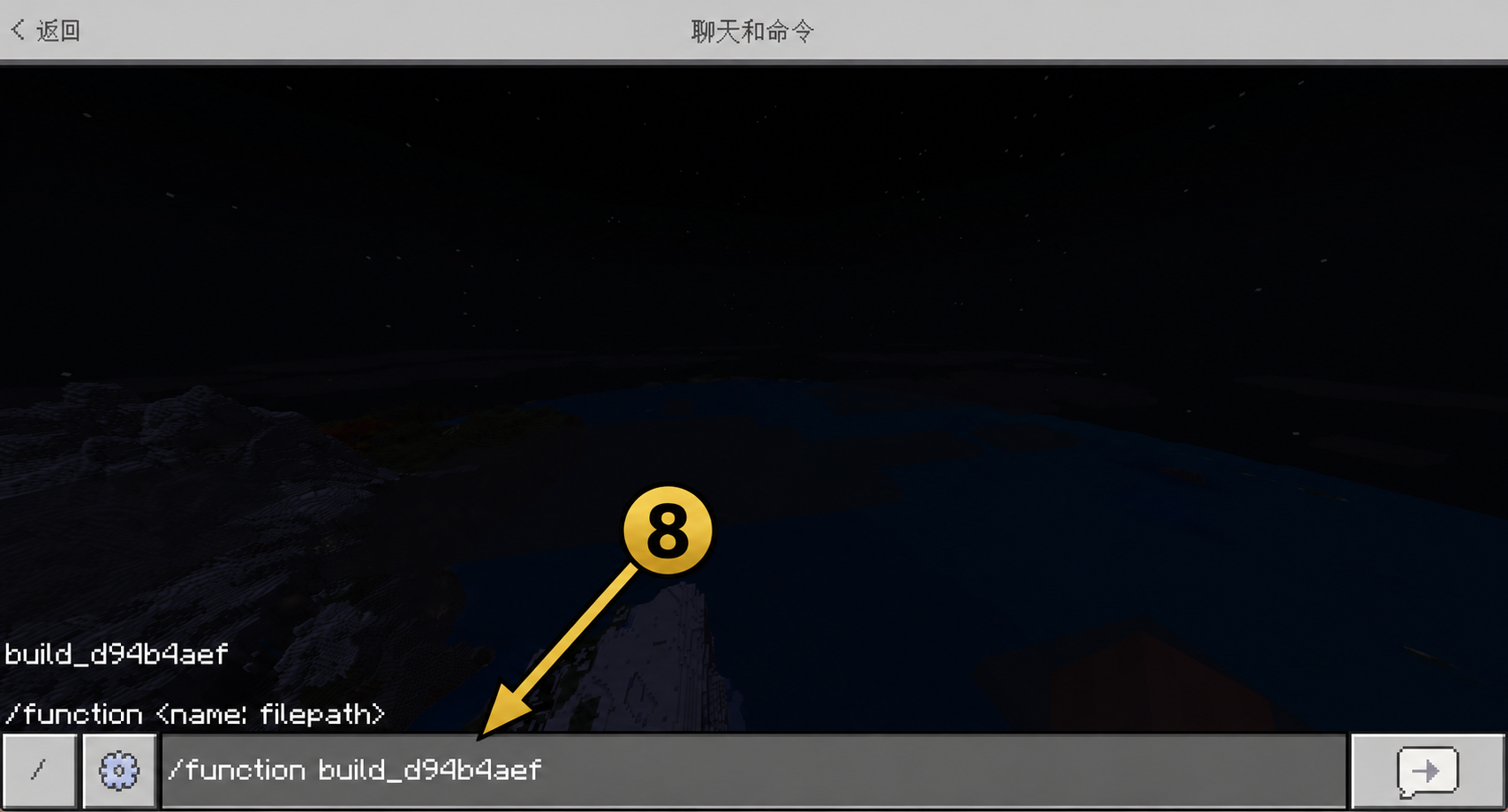
Paste the build’s specific command in your world
Stand in a clear area where you want the build. Copy the command at the top of this page and send it in game chat.Use the command on this page. Do not copy the example shown in the screenshot.
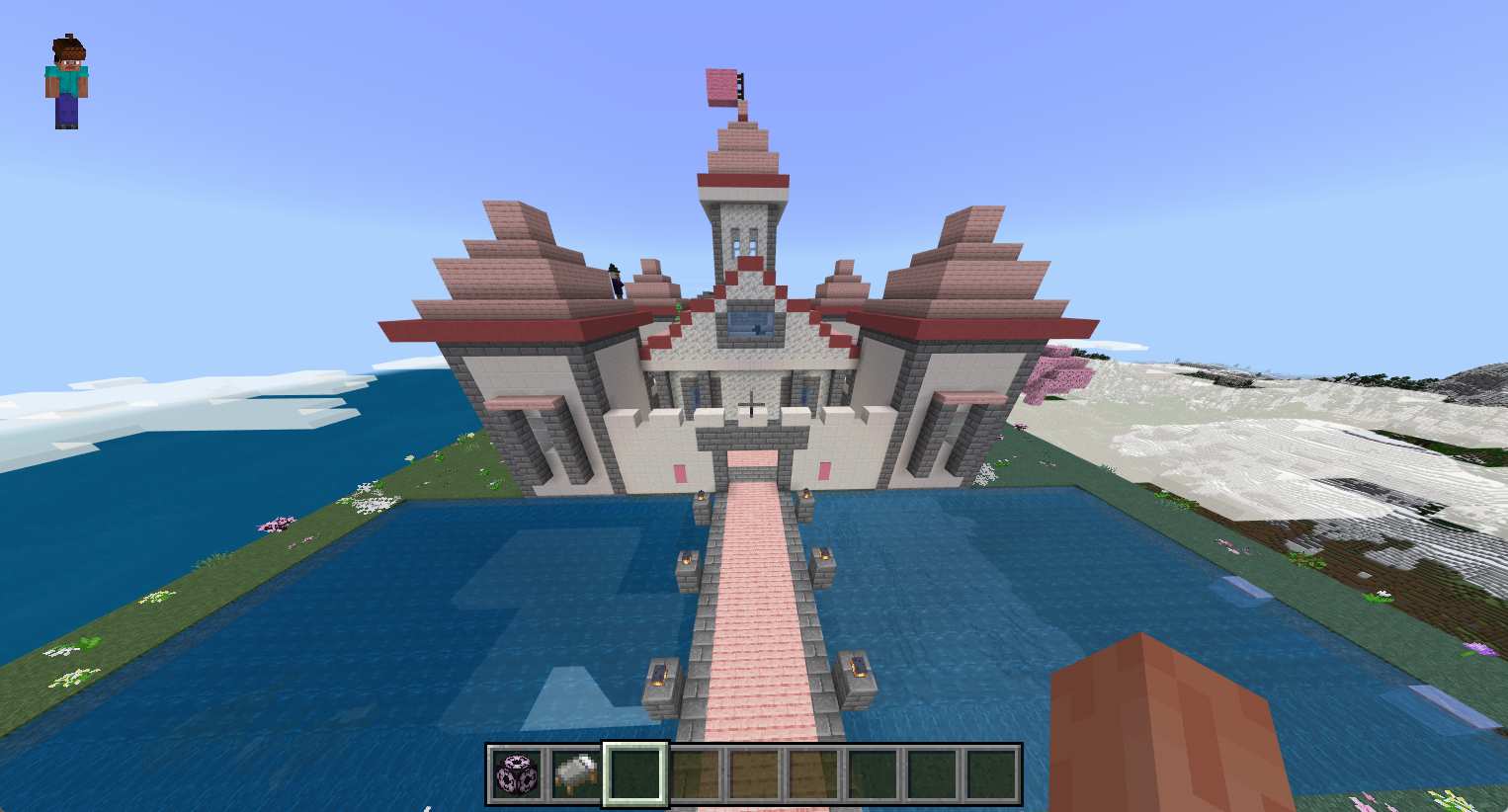
The build appears around your position
Send the command to place the build around your position. Large builds may take a little time to load nearby chunks. The screenshot shows the example’s finished result.
Common situations
“Minecraft for Windows” is missing from the app list?
Choose “Open with” → “Choose another app” and find Minecraft for Windows. If it is missing, check that Windows Bedrock Edition is installed.
Cannot find “Behavior Packs”?
On the Edit World screen, scrollLeft settings menu, then find “Behavior Packs”. Open it to see the “Available” and “Active” tabs on the right.
No build appears after entering the command?
Check that you entered the world where the behavior pack is active, commands are enabled, and you used this page’s specific command. If placement is queued, stay nearby while the area loads.