 yobuilds
Java Edition · Litematica · From download to your world
Bring your build into your world
Download the schematic, load its hologram, then use “Execute Operation” once in Paste Schematic mode to place it in your world.
Litematica hologram mod
Check the game version you play, then download the matching mod.
Fabric version:Search for the mod name Litematica. You also need to install MaLiLib。
Forge / NeoForge version:Search for the mod name Forgematica. You also need to install MaFgLib。
Quick download method
PCL launcher:Select the version you play → Version settings → Mod management → Download mods. Search for and download both names above.
HMCL launcher:Main screen → Download → Mods. Search for both names above and install them in the current instance.
If the mod is installed and M opens its menu, skip to the schematic steps below.
Download build schematic
Download .litematic schematic
After downloading, put the schematic in the folder shown below.
Which folder should contain the schematic?
In your launcher, selectThe game version you are playing, open that version’sGame directory. Inside it, open schematics folder, then put the downloaded .litematic file inside. If there is no schematics , create one yourself.
当前版本的游戏目录
├─ mods                 ← 模组的 .jar 文件
└─ schematics           ← 建筑图纸放这里
   └─ 建筑名.litematic
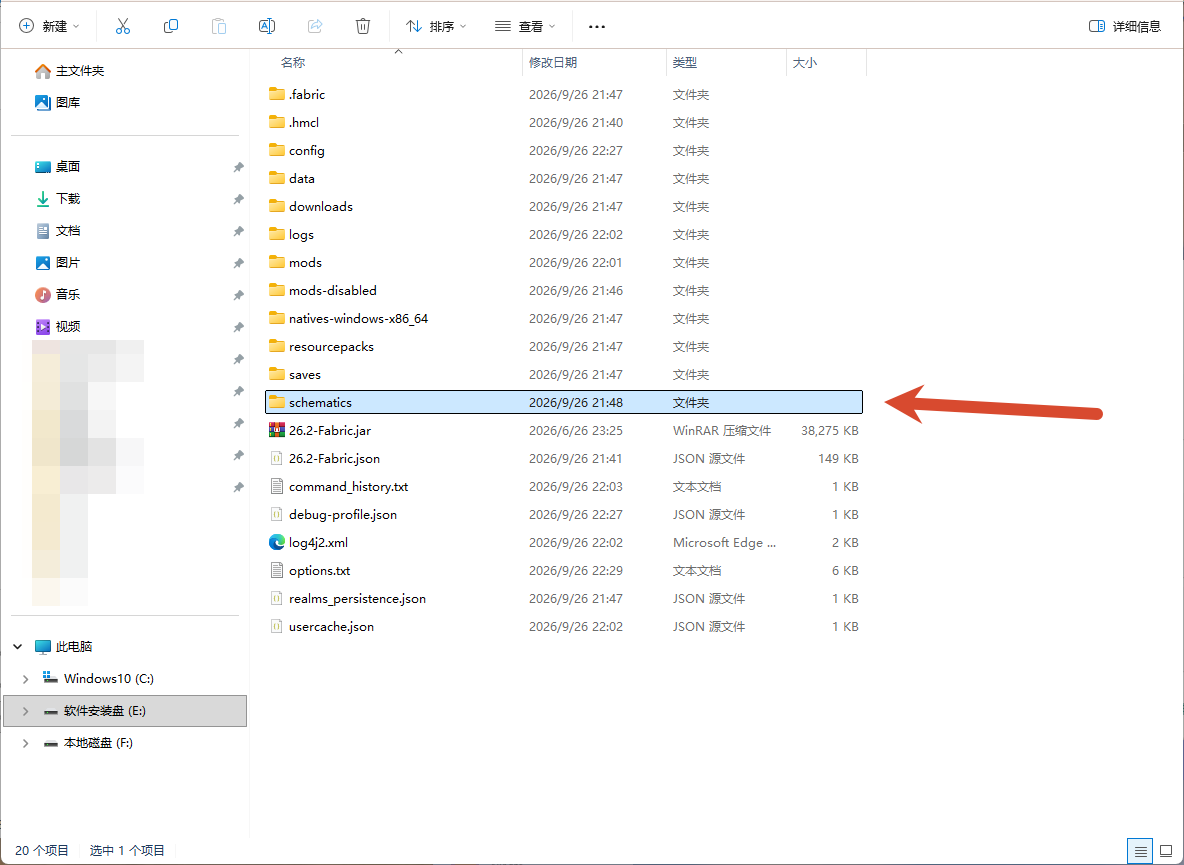
schematics folder.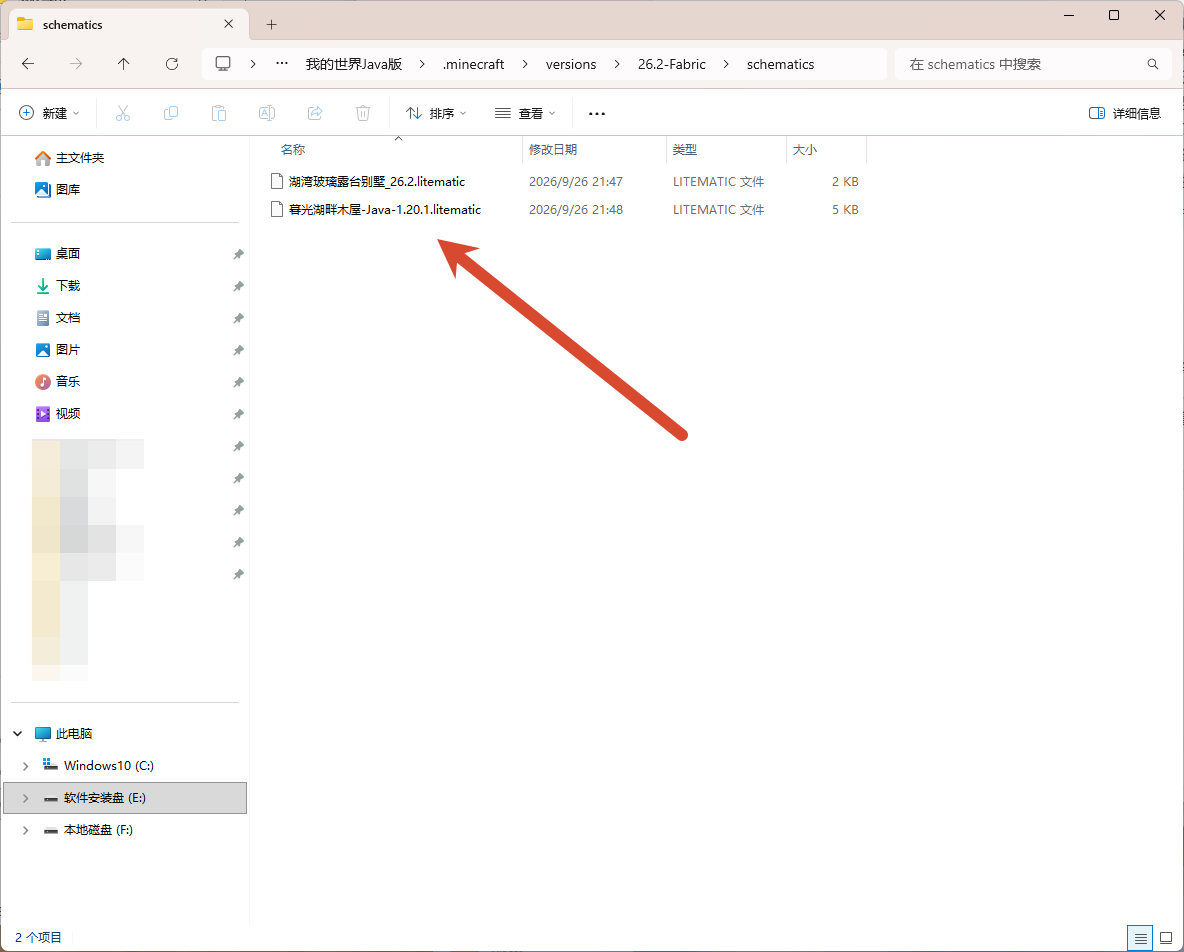
.litematic file inside.Load the schematic and check its position
Screenshots show Litematica in Chinese. Other compatible mods may use different menu labels.
-
02
Enter your world and press M to open the main menu
Find open space large enough for the build. Near the intended site, press M and choose “Load Schematics”.
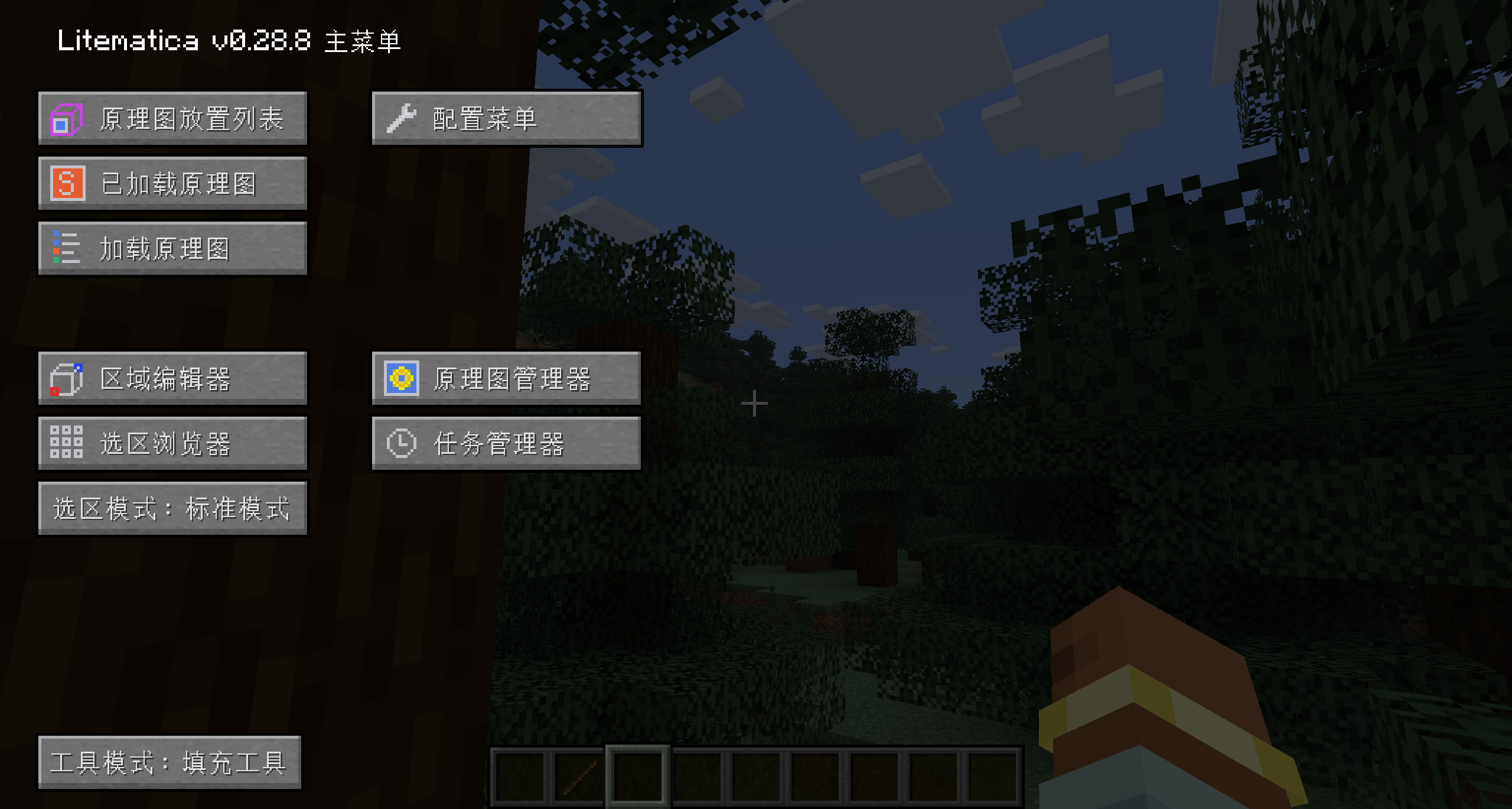
Figure 1: select “Load Schematics” on the left. You will change Tool Mode later for quick placement. -
03
Select the schematic and choose “Load Schematic”
Select your downloaded schematic, enable “Create a placement” at the bottom left, then select “Load Schematic”.
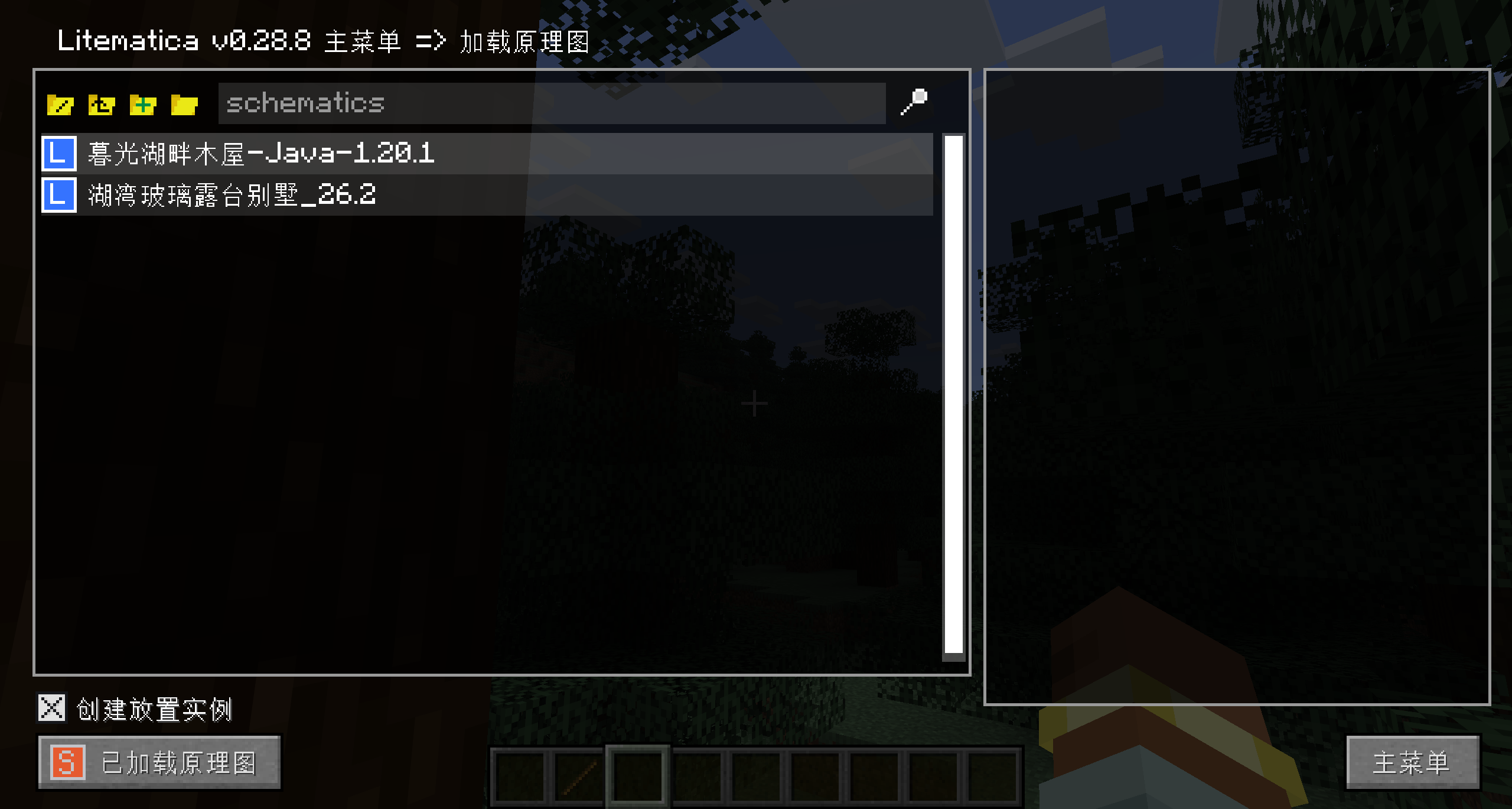
Figure 2: ② select the build; ③ enable “Create a placement”. The build name shown is only an example. -
04
Check that the colored hologram appears in the world
If the hologram is already visible, continue. Otherwise press M → Loaded Schematics, find the build and choose “Create Placement” on the right.
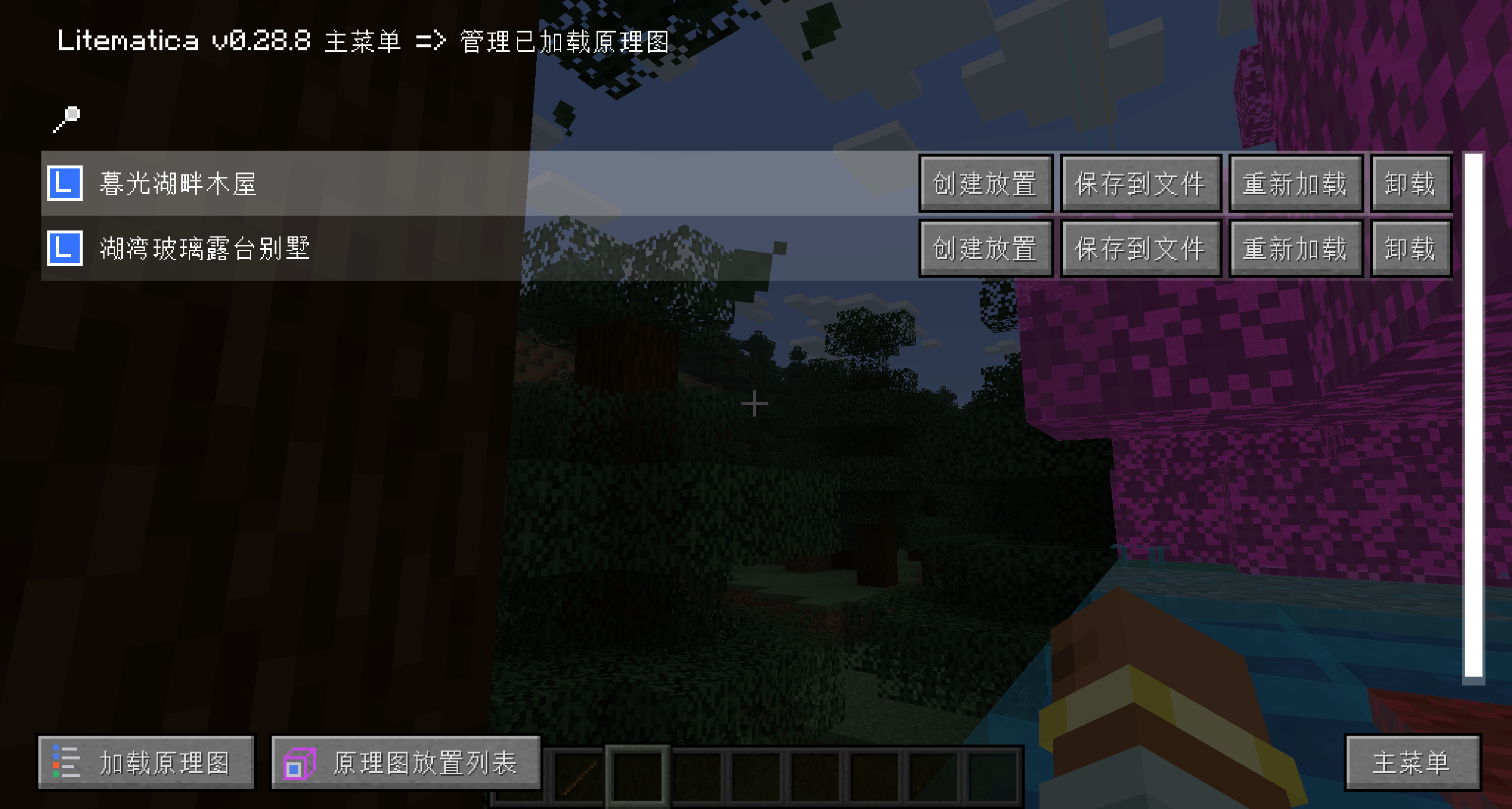
Figure 3: select “Create Placement” if no hologram appeared automatically. Do not create another placement if one already exists. -
05
Check the hologram position
To adjust the position, press M → Schematic Placements → select the build → Configure. Use “Move to Player”, then adjust the origin’s X (east/west), Y (height) and Z (north/south). This is still a preview; real blocks have not been placed.
Turn the hologram into real blocks
Stop here if you want to build manually along the hologram. For direct placement, follow the next three steps in Creative mode.
- 06
Switch to “Paste Schematic” mode
Enter Creative mode and press M to open the main menu. Select “Tool Mode” at the bottom left until it shows “Paste Schematic”. Holding a stick also shows the current mode at the bottom left of the game.
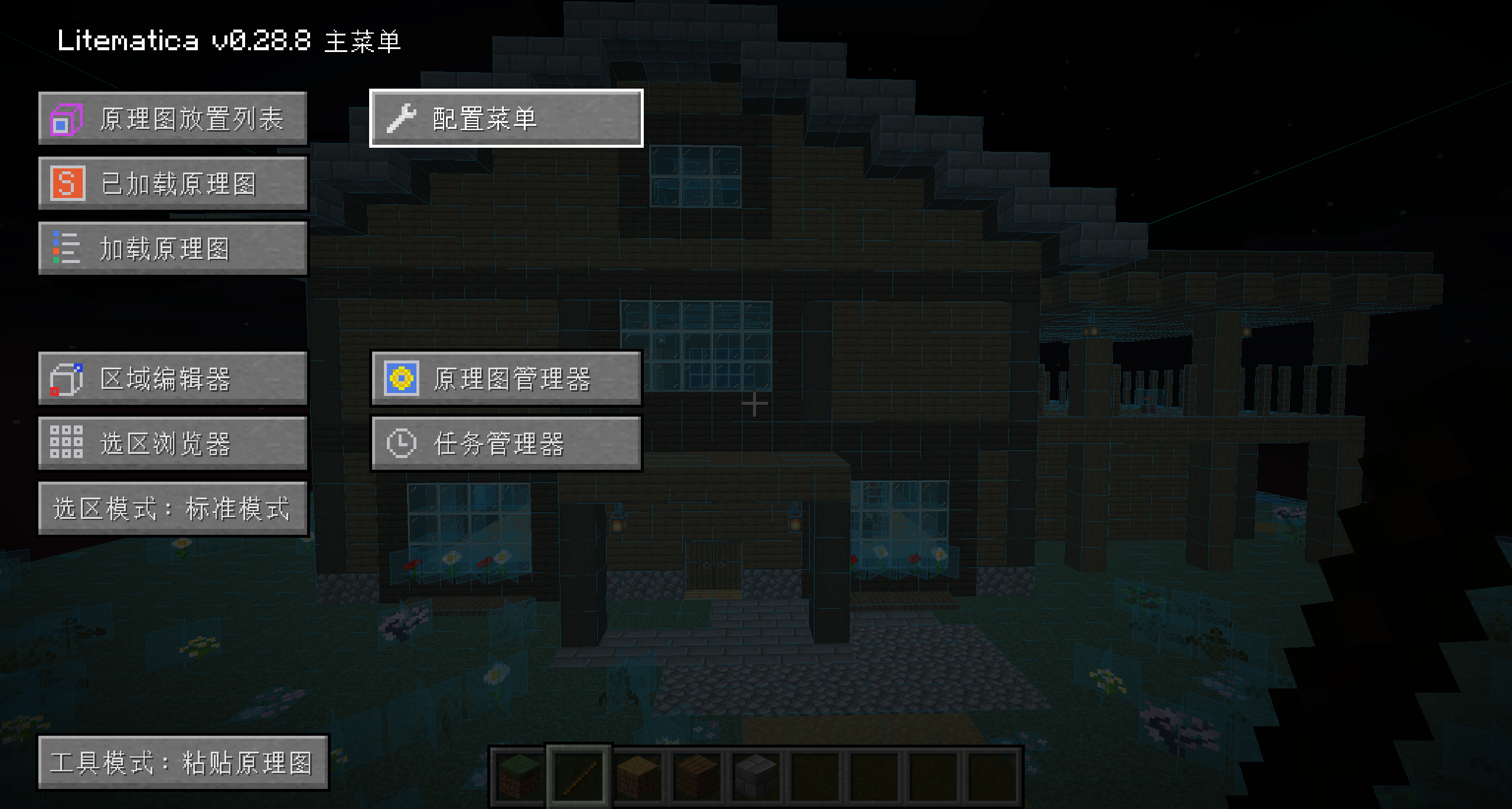
Figure 4: the bottom left should show “Tool Mode: Paste Schematic”. - 07
Set a hotkey for “Execute Operation”
Press M → Configuration menu → Hotkeys. Find “Execute Operation” (in English:
executeOperation), select it and press an unused key. The screenshot uses V as an example. You only need to set this hotkey once.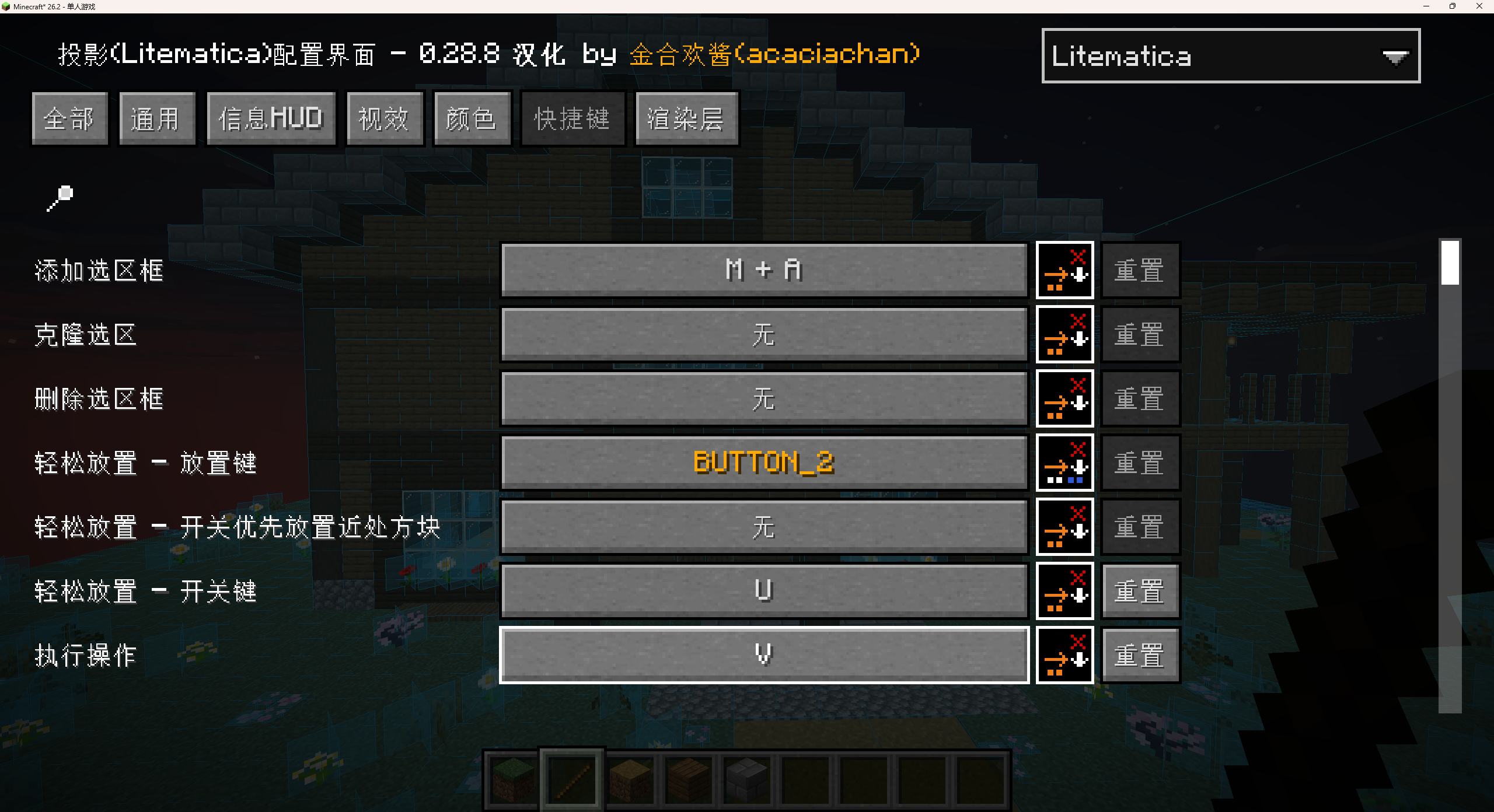
Figure 5: set “Execute Operation” under Hotkeys. Choose a key that suits you. - 08
Press the hotkey to place real blocks
Return to the world holding a stick. Check that the correct build name and “Paste Schematic” appear at the bottom left, then press your “Execute Operation” hotkey. Wait for placement to finish.
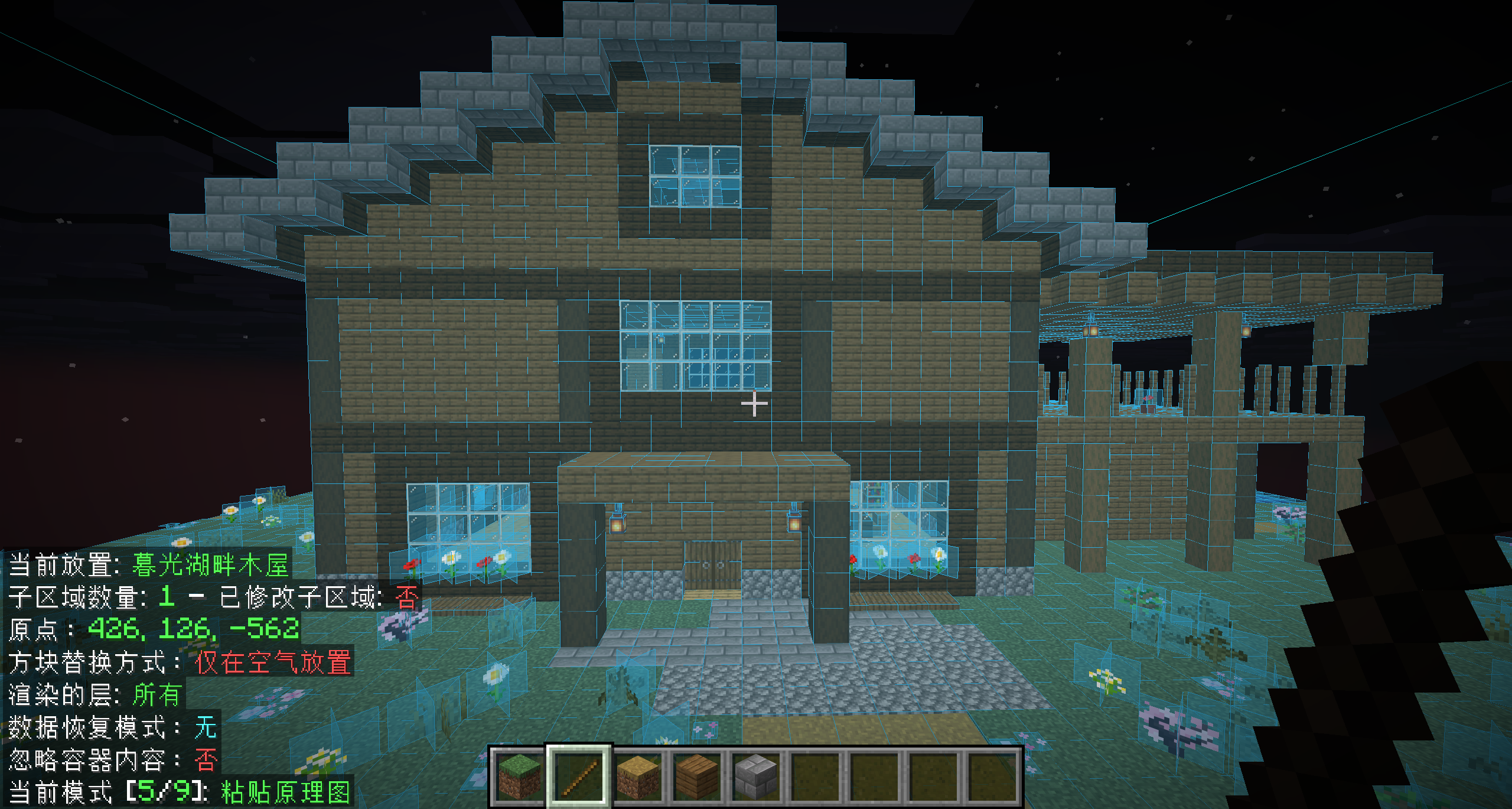
Figure 6: check the build name and current mode at the bottom left before pressing the key. The blue outline is still a hologram. 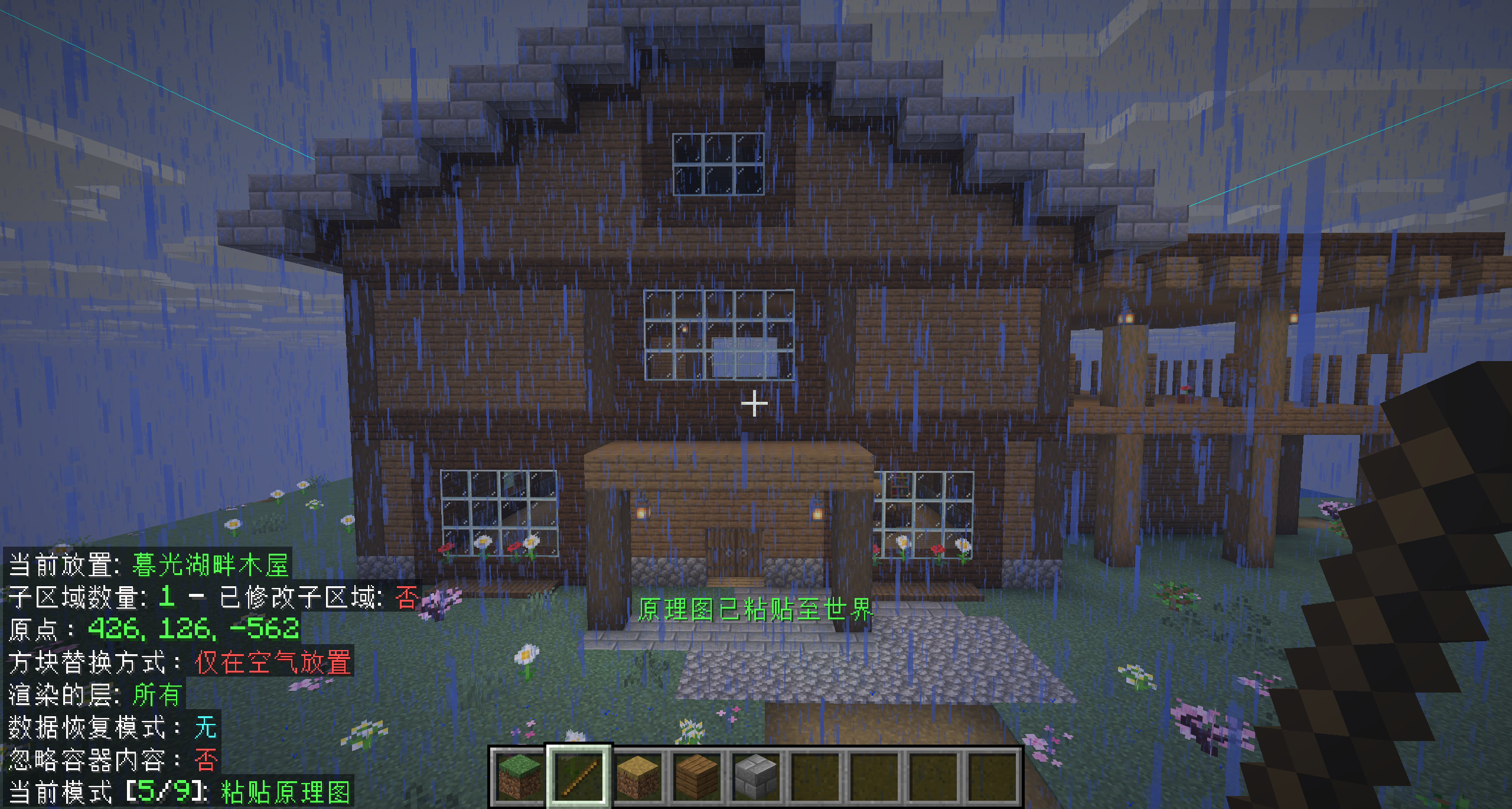
Figure 7: “Schematic pasted into world” confirms that placement is complete. Quick placement on multiplayer servers requires the relevant permissions. If the hotkey does nothing, check Creative mode, the stick tool, current mode and key binding first.
Check these items
The game reports missing dependencies or incompatible mods?
Check that both .jar files match your game version and mod loader. Use Litematica + MaLiLib for Fabric, or Forgematica + MaFgLib for Forge / NeoForge. Do not mix these sets. Remove incompatible older files from this instance’s mods folder.
Nothing happens when you press M?
Check that the schematic mod and its dependencies are installed in the running game instance. In Options → Controls → Key Binds, check the menu hotkey and any conflicts with other mods.
The downloaded file is missing from the list?
Check that the file ends in .litematic and is in this game version’s schematics folder. If your launcher uses version isolation, do not put it in the shared .minecraft\schematics folder. Open the correct instance folder from your launcher.
The hologram is visible, but the hotkey does not place real blocks?
Press M and check that Tool Mode is Paste Schematic, not Fill. Use Creative mode, select the placement, hold the default stick tool and check that tool hints appear at the bottom left. Set an Execute Operation hotkey in the configuration. Servers also require command permission.