 yobuilds
Java Fabric · Official workshop placement mod
From installing the mod to placing a build
Use the buttons on this page to install and connect the mod. Position the hologram in the game, then turn it into real blocks.
Check the game version and instance first
On the build page, selectThe Java Fabric version you actually launch. Screenshots use 1.21.11 as an example; use the version selected on your build page. Mods are organized byGame instanceInstall once per game instance. New builds do not require reinstalling the mod. A different game version or instance needs its own matching mod.
Quick placement currently supports single-player worlds and LAN worlds that you host. Open the build you want on its details page first.
Download the mod for the version you play
-
01
Choose your version and download the mod
Under Download build, choose the Java version matching your launcher. Then use the official placement mod card to selectDownload mod. The downloaded file is
.jarfile. Install once per game instance; you do not need to reinstall it for each build.Download matching mod ↓Return to the build page, select a supported Java version, then choose “Download mod”.
Select a version on the build pageThe versions must match. For example, if you play 1.21.11 with Fabric, download the Java 1.21.11 mod. Do not mix other game versions into this instance.
-
02
Put the .jar file in the mods folder of your current game instance
Open from your launcherThe game directory for the version you play, then open
modsfolder, then take the newly downloaded.jarinto it. If there is nomodsfolder, create one. Even if Windows shows an archive icon,Do not extract it, keeping the complete.jarfile.Current game directory
└─ mods
└─ mc-building-studio-placement-game-version-mod-version.jarWith version isolation enabled, the game directory may be in
.minecraft/versions/版本名/mods; without instance isolation, it is usually in.minecraft/mods. Use the actual game directory opened by your launcher. Replace an older copy of the same mod to avoid loading two versions.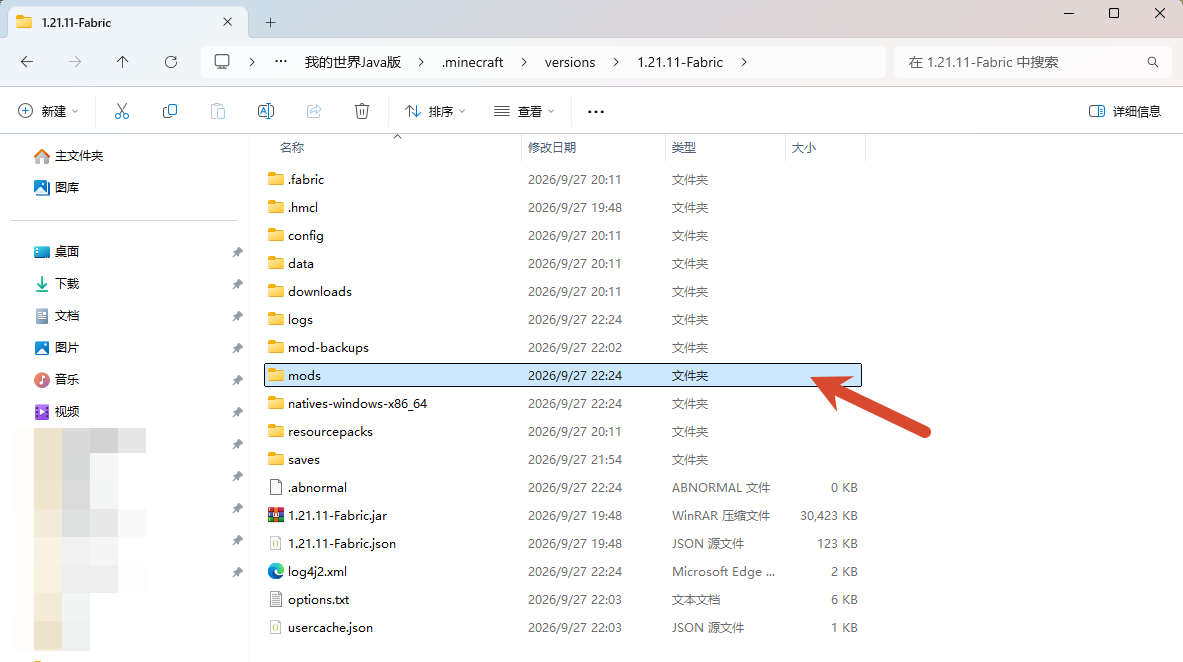
① In your current game instance’s directory, find mods。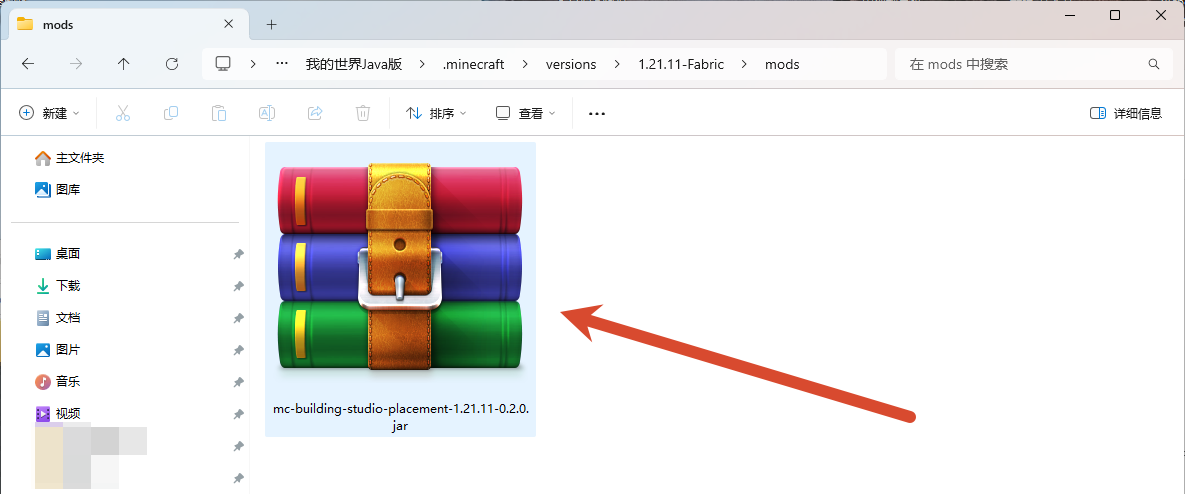
② Put the downloaded .jarPut it in the folder without extracting it. -
03
Launch the game, enter your world and press E
If the game is running, restart the matching Fabric instance to load the new mod. Enter your world, stand near the intended building site and press E Open your inventory once. After entering your world, keep the game running and return to the build page in your browser.
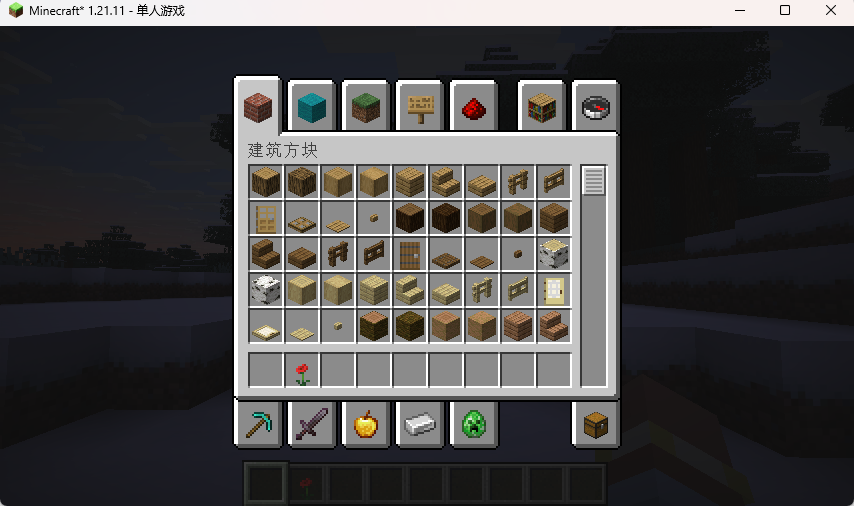
③ Enter your world and press E Open your inventory, then return to the website.
Connect the game and set the control panel hotkey
-
04
Return to this build’s page and select “Connect game”
On the official mod card, selectConnect game, and wait until the card shows“Connected · Java your version”. Skip this if already connected. If your browser asks to access the local game, allow the connection. Keep the game running with your world open.
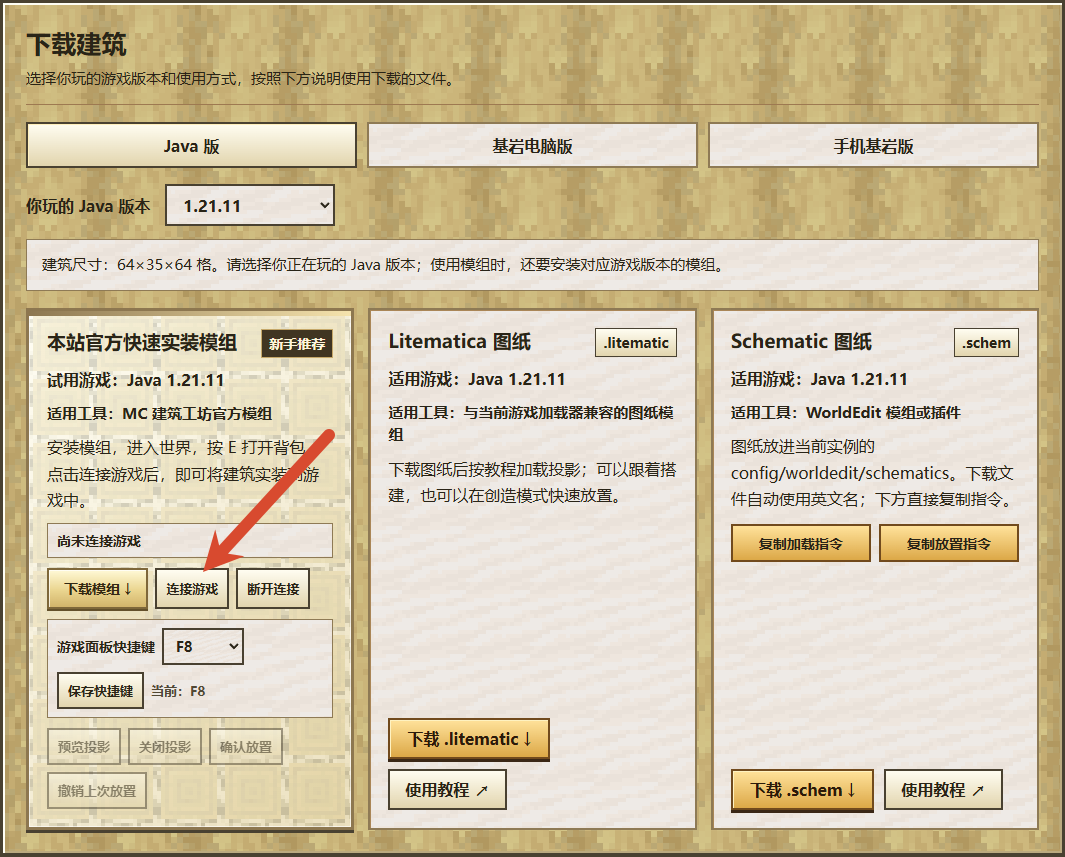
④ Select “Connect game”. The screenshot also highlights the game panel hotkey below. The version shown is an example. -
05
Choose a hotkey and select “Save hotkey”
After connecting, use the website card’sGame panel hotkey, choose a key that does not conflict with your game controls, then selectSave hotkey. The binding is saved when “Current: your selected key” appears. The screenshot uses F8 as an example. This setting is remembered, so you do not need to save it each time you open the website.
Return to the game and press the saved hotkey to open the workshop hologram control panel at the bottom right. Press again to close it. Opening the panel does not change your world; you still need to preview and confirm placement.
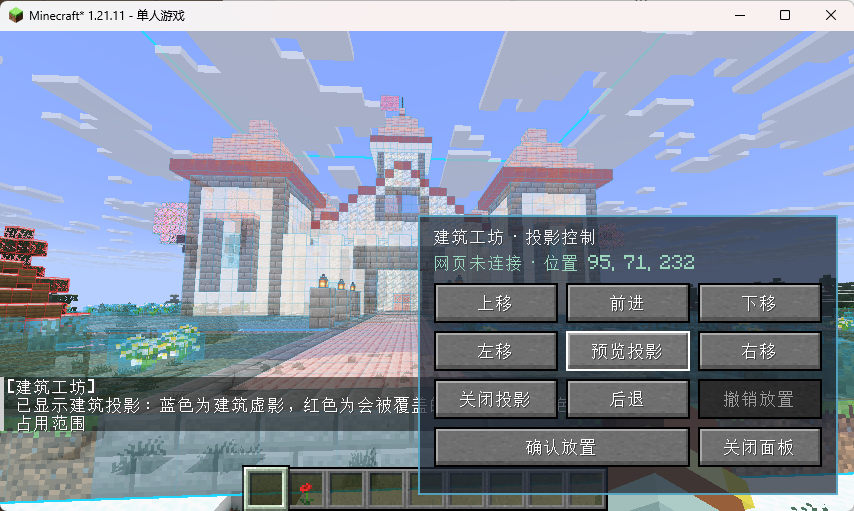
⑤ The panel appears at the bottom right in the game. The screenshot was taken before connecting; follow the actual “Connected” status on the website.
Preview the position and confirm placement
-
06
Select “Preview hologram” to check the build’s footprint first
In the game panel or on the website card, selectPreview hologram. A hologram of the build appears in front of you.BlueThis is the build hologram,RedThese are existing blocks that placement will overwrite. The outline marks the build’s footprint. Your world has not been changed yet.
To switch builds, open the other build’s page and select “Preview hologram”. Select it again to reposition the build in front of your player. For large builds, the 26.2 test version shows only the blue footprint outline. Follow the in-game instructions for other versions.
-
07
Use the direction buttons to adjust the position in three dimensions
Check the entrance, ground level and surrounding terrain, then use the panel’sForward, backward, left, right, up and down to move one block at a time. Forward, backward, left and right follow your player’sCurrent direction for direction; use up and down to adjust height. Each click moves one block. Walk around the hologram afterward and check that the outline does not cover terrain or buildings you want to keep.
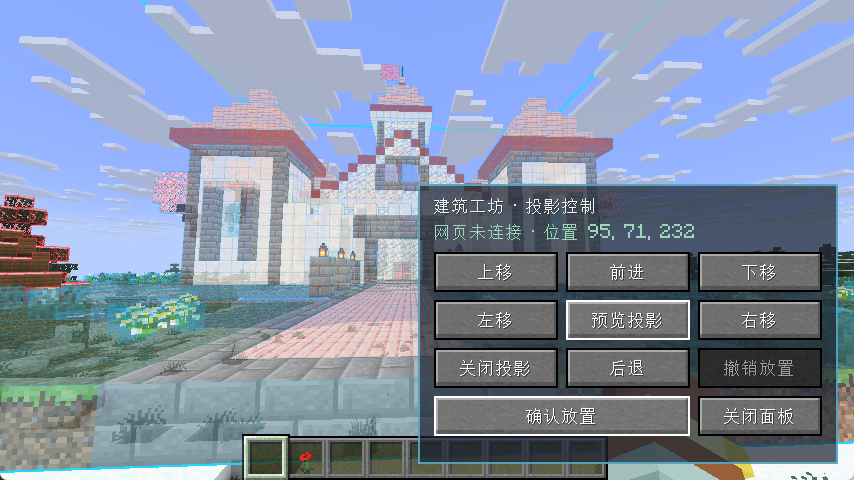
⑥ Check the position of the blue hologram and its outline, then use “Confirm placement” below. The connection status shown is from the screenshot session. -
08
Select “Confirm placement” to place real blocks
Finally, check the red overwrite area and the entire outline:Placement clears existing terrain and blocks inside the outlined build area, then load this build. Once the position looks right, select this in the game panel or on the website:Confirm placement. If the website asks for confirmation, confirm again. The hologram then disappears and the real blocks appear in your world.
Large builds show placement progress. Stay in the current world until it finishes. While running, selectUndo placement to stop and restore blocks already changed. After placement, selectUndo last placement to restore the blocks overwritten by this placement.
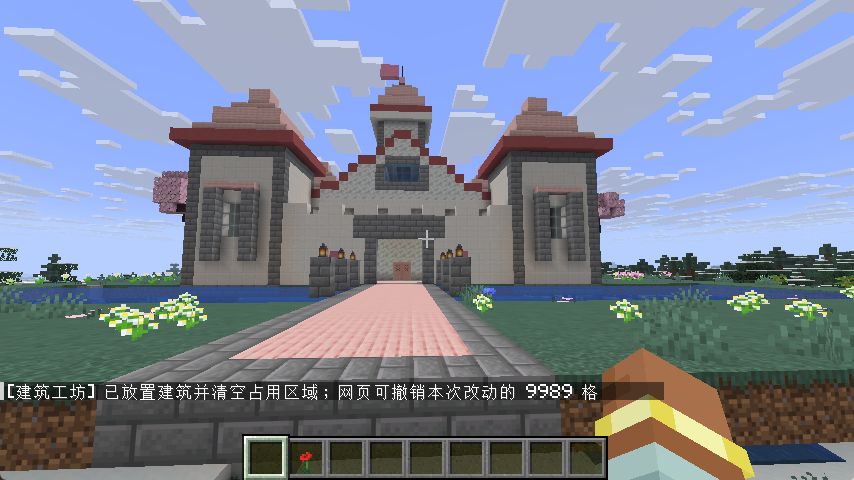
⑦ Placement is complete. A confirmation appears in the game.
How to use the website and in-game controls
Download the .jar mod matching your current Java version. Install it once per game instance.
Connect this website to the game running on your computer. Wait for “Connected” before using hologram controls.
Save a key to open or close the control panel at the bottom right of the game.
Preview this build in front of your player. Select again to reposition it at your current location.
Move the hologram one block at a time in all six directions to align its entrance, ground level and height.
Hide only the hologram. No real blocks will be placed or changed.
Clear existing blocks within the build’s footprint and place the real build. Check the outlined area before confirming.
Undo the last placement and restore the blocks it overwrote.
Disconnect this website from the game. Select “Connect game” when you want to reconnect.
Troubleshoot by symptom
The mod looks like an archive. Should I extract it?
No. Check that the filename ends in .jar and put it directly in the current game instance’s mods folder. An archive icon only shows the Windows file association.
“Connect game” does not connect?
Check that the running Fabric instance matches the version selected on the build page and that the mod is in that instance’s actual mods folder. Enter your world and press E once. If the game was running when you copied the mod, restart it. Allow local connection access when your browser asks.
The hotkey does not open the panel?
Check that the website shows “Connected” and the hotkey has been saved. Return to your world and press it. If the key conflicts with another control, choose an unused key on the website and save again.
Cannot select “Confirm placement”, or the wrong build is previewed?
Open this build on the website, keep the game connected and select “Preview hologram”. “Confirm placement” becomes available once its hologram appears in the current world. Preview again after switching builds.
The hologram is in the wrong position, or the build was placed incorrectly?
Use the six direction buttons to fine-tune the position. Select “Preview hologram” again to reposition it in front of your player. After placement, “Undo last placement” restores the blocks that were overwritten.